Saving and loading portfolios
Save a portfolio to the cloud and reload it, plus the ready-made and influencer models.
A backtest worth keeping is worth saving. Backtes.to can store a portfolio on your account and reload it later, and it also ships a catalogue of ready-made and influencer-curated portfolios you can start from or compare against.
1. Save a portfolio
The Save Portfolio button sits in the bottom bar of the backtester, next to Settings, Load portfolio and Historical ETFs.
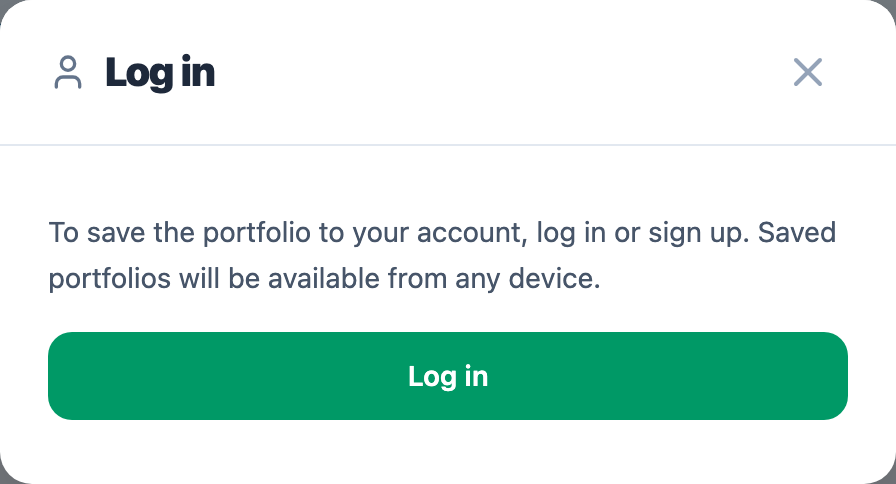
Saving requires an account. If you're not logged in, the button opens a login prompt first:
Once logged in, you get a name field (with a Generate a name with AI shortcut that
suggests one from your assets) and an optional Strategy details note. You can use
**bold** and *italic* in that note; it appears under Strategy Details when you reload
the portfolio, so it's a good place for the reasoning you don't want to forget in six months.
The free plan keeps one cloud-saved portfolio; the Supporter plan removes the cap. Saving again under a name you already used overwrites it rather than using up a new slot.
2. Load a portfolio
Two ways in: the Load portfolio button in the bottom bar, or Use Saved in the empty composition table before you've added anything — both open the same modal.
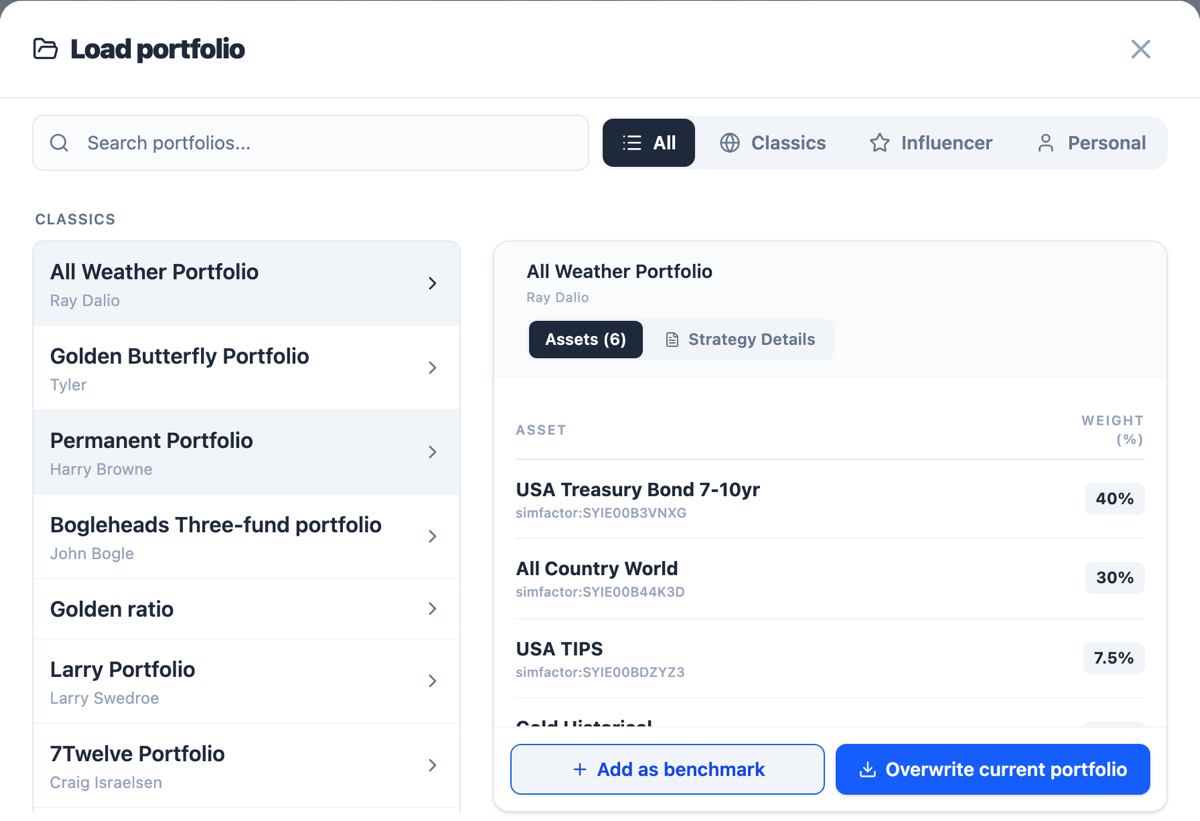
Four tabs filter the list:
- All: everything below, mixed together.
- Classics: well-known model portfolios with their author (All Weather by Ray Dalio, Golden Butterfly, the Bogleheads Three-fund portfolio, and others). Useful as a reference point or a starting allocation to tweak.
- Influencer: portfolios curated by creators partnered with Backtes.to.
- Personal: your own saved portfolios. Requires an account, and the free-plan limit applies here too.
Click one to preview its composition (the Assets tab) and, if the author left one, the Strategy Details note. From there you have two ways to actually use it:
- Add as benchmark: adds it as a new portfolio tab next to what you're building, so you can compare the two directly.
- Overwrite current portfolio: replaces your current portfolio with it outright.
Loading one doesn't run the backtest by itself — hit Run Backtest afterward to see the results.